How to Move Your WhatsApp API Number from One Tech Provider (or BSP) to Another
Moving to a different WhatsApp API provider used to mean migrating the number. Meta is now changing how accounts work, and for accounts on the new model a number is no longer moved: your new provider is added next to the old one. This guide covers both, tells you how to check which applies to you, and what to do for a number that is also on the WhatsApp Business app. Everything comes from Meta's own documentation, linked at the end.
A note on the names
BSP is the older name. Meta now calls the providers that have a credit line Solution Partners, and the ones that don't Tech Providers (a Tech Partner is a Tech Provider that is also a Meta Business Partner). For a move they work the same way. The difference you'll feel is billing.
Two kinds of onboarding
- Standard onboarding: Meta's term for the normal Embedded Signup flow. The number is registered for the Cloud API and is not on the WhatsApp Business app on your phone. This guide also calls it "API only".
- Coexistence: the number stays on the WhatsApp Business app, and the provider is connected alongside it.
THIS IS CHANGING NOW
Meta's new WhatsApp account model became generally available on September 23, 2026, and is reaching all businesses by mid-October 2026. Accounts are moved over in stages, so you may still see the older single-account view in Business Settings. Meta's own pages say the details are subject to change, so check the linked pages before you start.
First, find out what you have
OLD MODEL OR NEW MODEL? WHICH ACCOUNT MODEL ARE YOU ON?
Open Business Settings → Accounts. On the new model you see two separate tabs: WhatsApp accounts (the phone number) and Messaging accounts (templates and billing). On the old model you see a single WhatsApp accounts list where each entry holds everything.
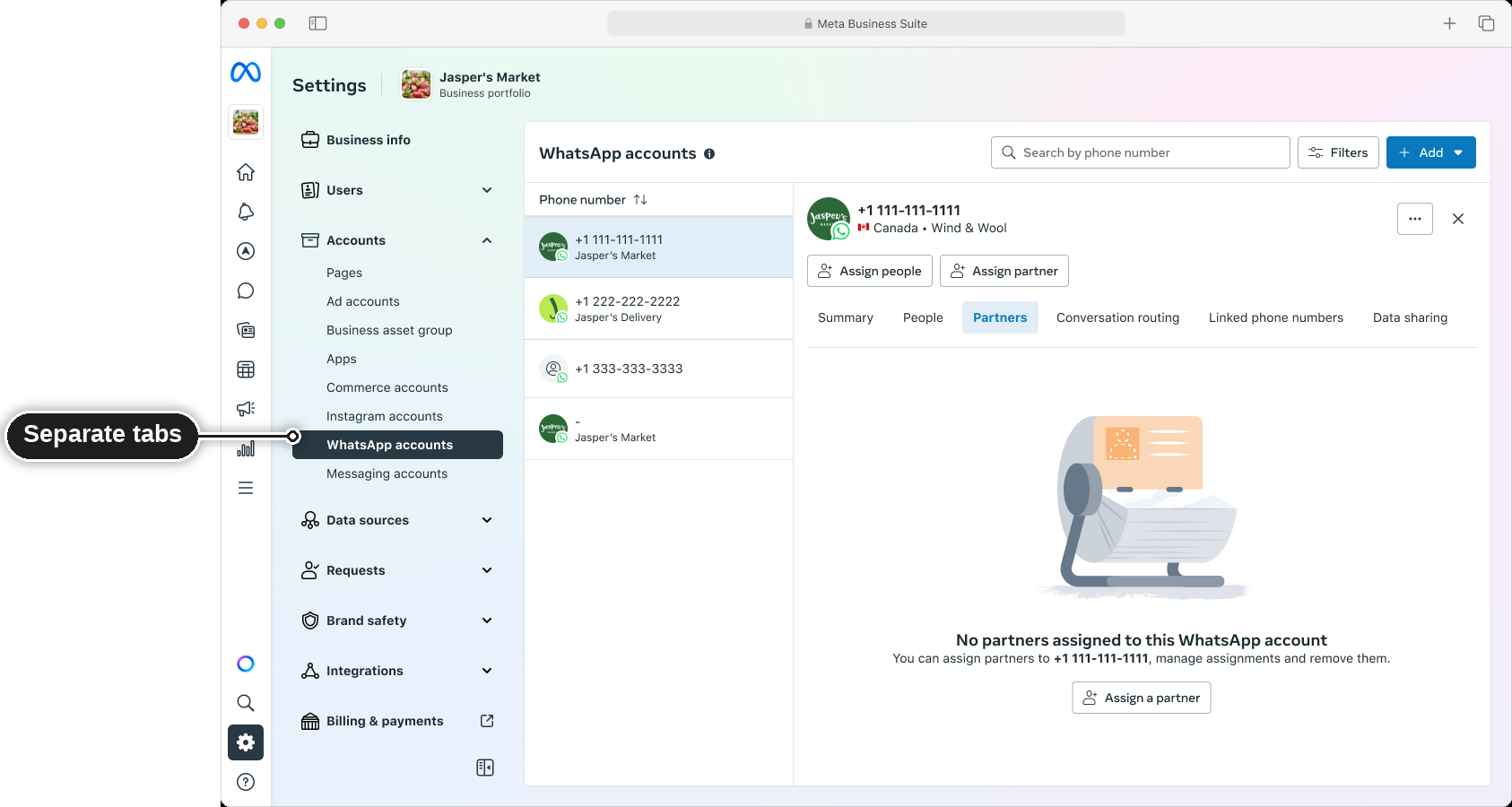
IS YOUR NUMBER ON STANDARD ONBOARDING, OR IS COEXISTENCE ENABLED?
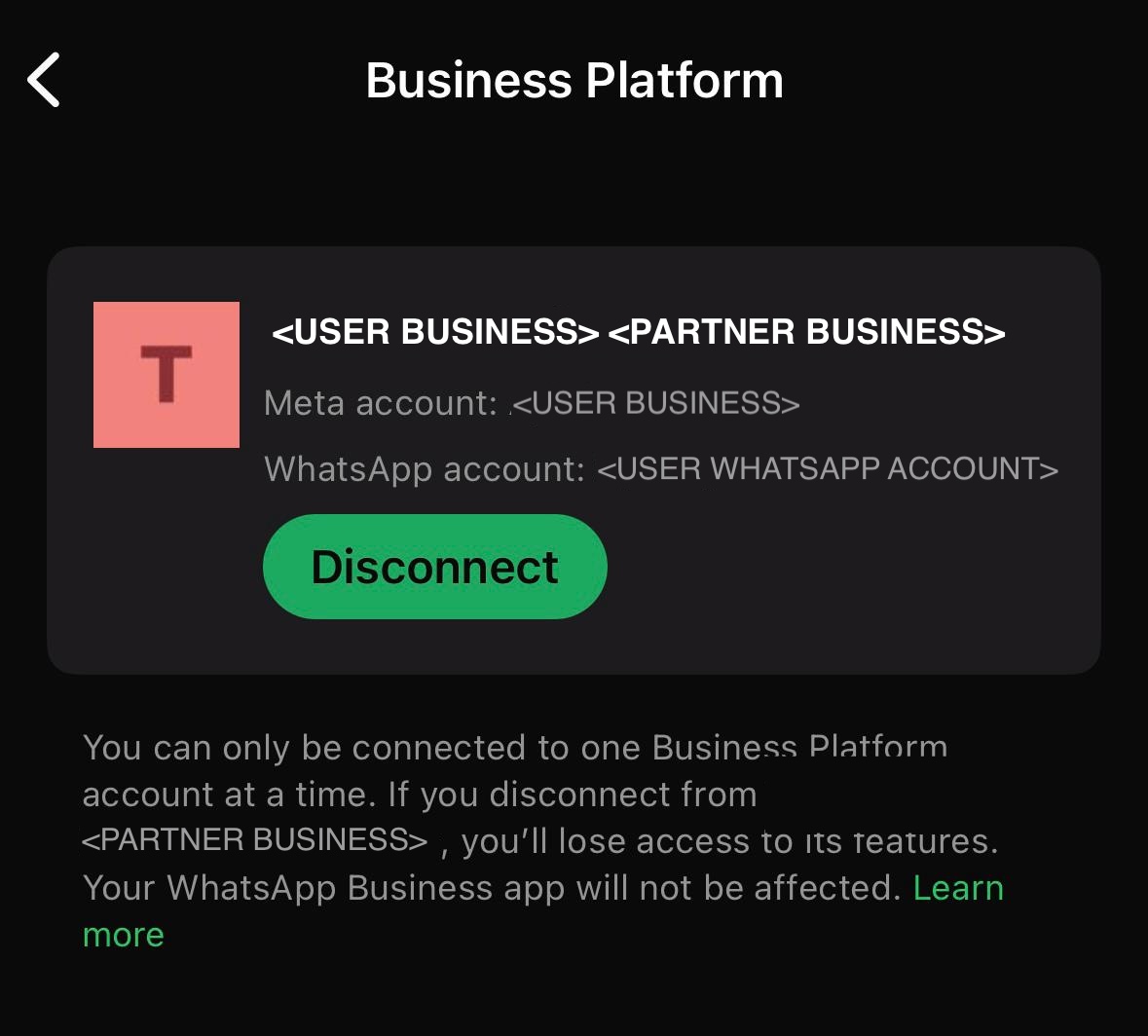
If the WhatsApp Business app on your phone still works with this number and shows Business Platform under Settings → Account, it's a coexistence number. Otherwise it was onboarded the standard way (API only). If you're not sure, ask your provider. Going through a provider does not give you coexistence by default: the provider has to offer it, and the number has to be on the Business app when it's connected.
DOES YOUR PROVIDER OWN THE ACCOUNT?
Under the old "on behalf of" model some providers owned the account themselves. Meta retired that model, and the accounts were to be handed to the businesses by 1 October 2025. If your account isn't listed under your own business portfolio, ask your provider to transfer it first. You can only move or share an account you own.
Before you start
- You're an admin of the business portfolio that owns the WhatsApp account.
- The display name is approved and has no pending change.
- A payment method. With a Tech Provider you pay Meta for messages yourself, so add a card (Meta's help article). Until you do, template messages sent through the new provider won't go. A Solution Partner can extend its own credit line instead.
- A list of your approved templates and what each is used for. Under the new model they are not shared between providers, and you may not be able to see them once you've disconnected (see Step 1).
- A quiet time for the switch, and your developers on hand: your app's credentials and webhook URL will change.
- Don't cancel the old contract yet. Keep it until the new setup has been working for a while.
Step 1. Disconnect from the old provider
YOU MAY NEED TO EXPORT YOUR TEMPLATES BEFORE DISCONNECTING
Templates are always associated with Messaging Account.
- New model: export them. The new provider starts with an empty Messaging account, so you re-create your templates there. The old provider's Messaging account may not be in your portfolio, and then you can't see the templates once you've disconnected. Open Business Settings → Accounts → Messaging accounts and check whether the old provider's account is listed. If it is, you own it and can read the templates in WhatsApp Manager at any time. If it isn't, ask the provider before you disconnect for a list with each template's name, language, category and text (an API export is the easiest for them).
- Old model: no export needed. The account is already yours, and the signup copies approved templates in good standing across when the number moves.
- Exception: old model, but the provider still owns the account. This is the retired "on behalf of" arrangement. Get the account transferred to your portfolio first. Meta's pages don't say whether the templates then still have to be exported, so keep a copy of them to be safe.
Standard (previous provider) → Standard (new provider)
-
New account model: Meta's page on moving numbers between
providers says:
"Phone number migration isn't supported for accounts on the new WhatsApp account model. The number can't be moved between accounts … Sharing still works: your client can share the WhatsApp account that owns the number, which gives you access to it."
The number stays where it is, and each provider gets its own Messaging account for templates and billing. No action is needed to disconnect from the previous provider. The new provider is added next to it in Step 2, and you remove the previous one at the end, once you're satisfied. -
Old account model: Meta's migration page describes an older
flow, which it now says applies only to accounts that aren't on the new model.
The new provider's signup moves the number, so before you start:
- Have the number's two-step PIN to hand, if it still has one. The new provider needs it when it registers the number. The two-step PIN, and what to do if it is lost.
Standard → coexistence
- Deregister the number from the old provider: ask them to, or delete it yourself in WhatsApp Manager. Step-by-step: how to de-register your number.
- Put the number on the WhatsApp Business app on your phone, and use a recent app version (2.24.17 or higher).
- Wait up to 3 minutes. Meta's signup error for a number that is still registered says it can take up to 3 minutes for the number to become available. Then continue with Step 2. Onboard with the new provider.
If you skip the deregister step, the new provider's signup stops with "The phone number you entered is already registered" (3441030).
Coexistence → coexistence
Meta's signup won't switch the provider for you here. It stops with:
"The business is already sharing this WhatsApp Business account with a partner. Switching partners is not supported in this flow. Disconnect the current partner in the WhatsApp Business App, then return here to connect a new partner."
- Disconnect, in the WhatsApp Business app: Settings → Account → Business Platform → select the connected platform → Disconnect. The old provider is told the connection was removed, and its sends stop working from then on.
- Wait 15 minutes. Meta's error messages ask you to wait that long before retrying, so the number can become available again.
Coexistence → standard
Disconnecting in the Business app is not enough: the number stays on the app, and a cloud-only signup fails with "This number is registered to an existing WhatsApp account". The number has to leave the app, which means deleting the account there.
- Back up your chats first. Deleting the account removes the app and its chats on this number.
- In the WhatsApp Business app, go to Settings → Account → Delete account and complete the flow.
- Wait a few minutes, then continue with Step 2. Onboard with the new provider.
Meta doesn't document this as a flow. Check with the new provider before you delete anything, and if you want to keep the app, choose a provider that supports coexistence instead.
Summarising disconnection steps:
- Standard → Standard: nothing to disconnect on the new account model. The new provider is added next to the old one.
- Standard → coexistence: deregister the number, then connect it to the WhatsApp Business app.
- Coexistence → coexistence: disconnect in the WhatsApp Business app, then wait 15 minutes.
- Coexistence → standard: the number has to leave the Business app. This is the least documented case.
Step 2. Onboard with the new provider
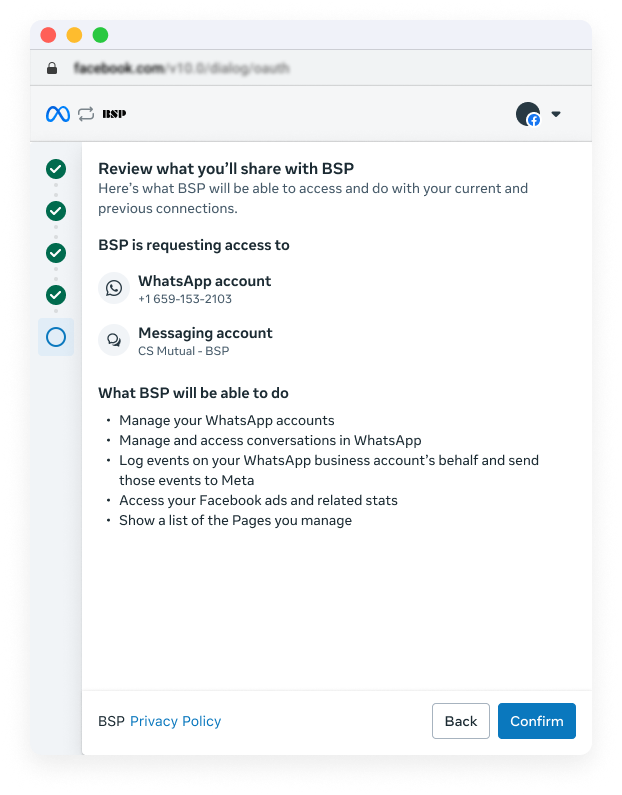
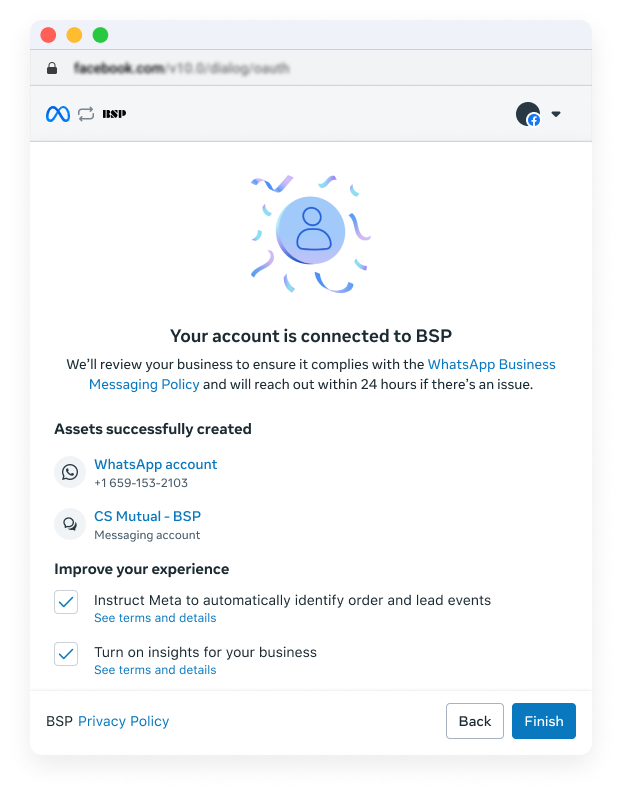
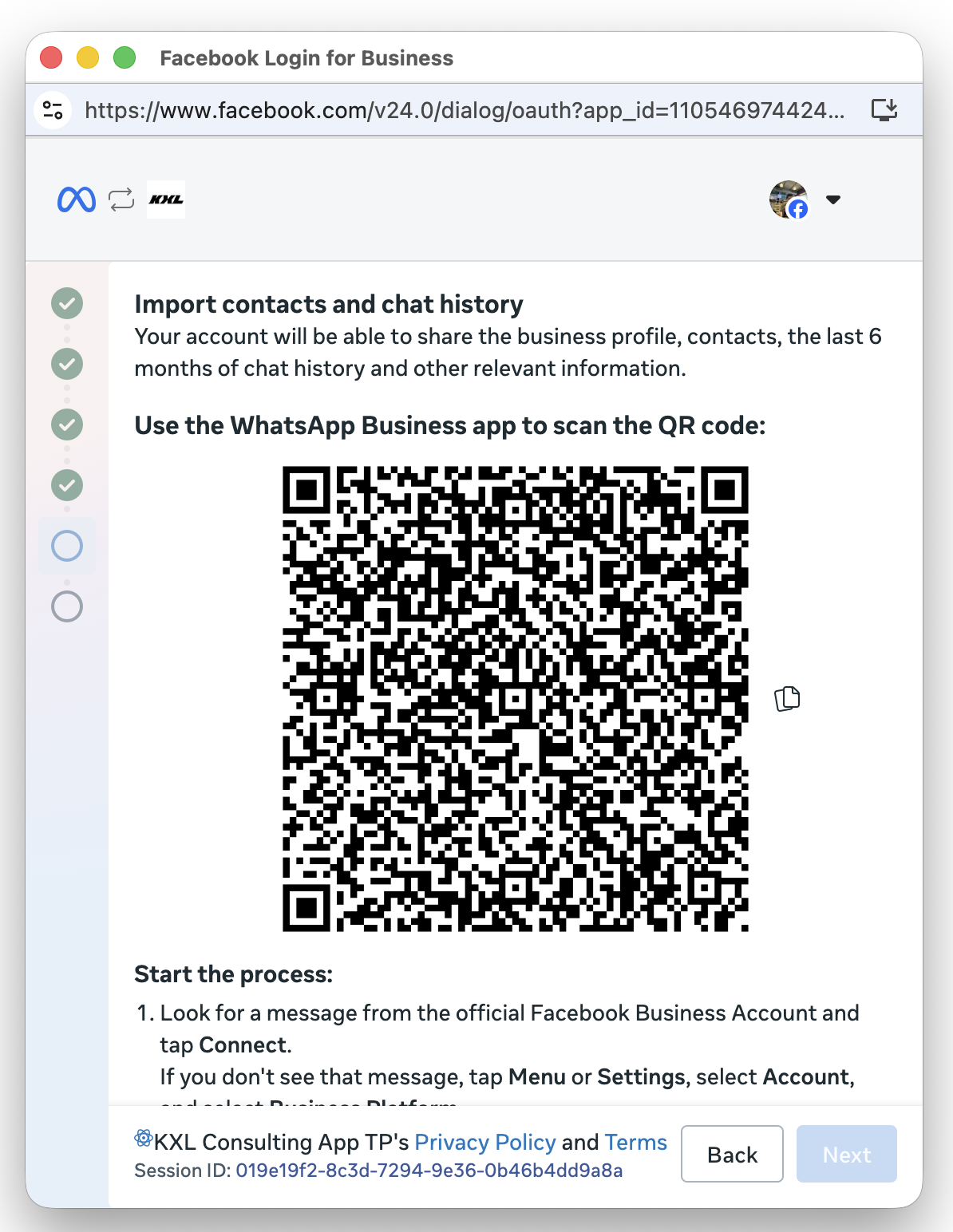
Open the new provider's signup (Embedded Signup) and follow it. The first screen is the same for everyone:
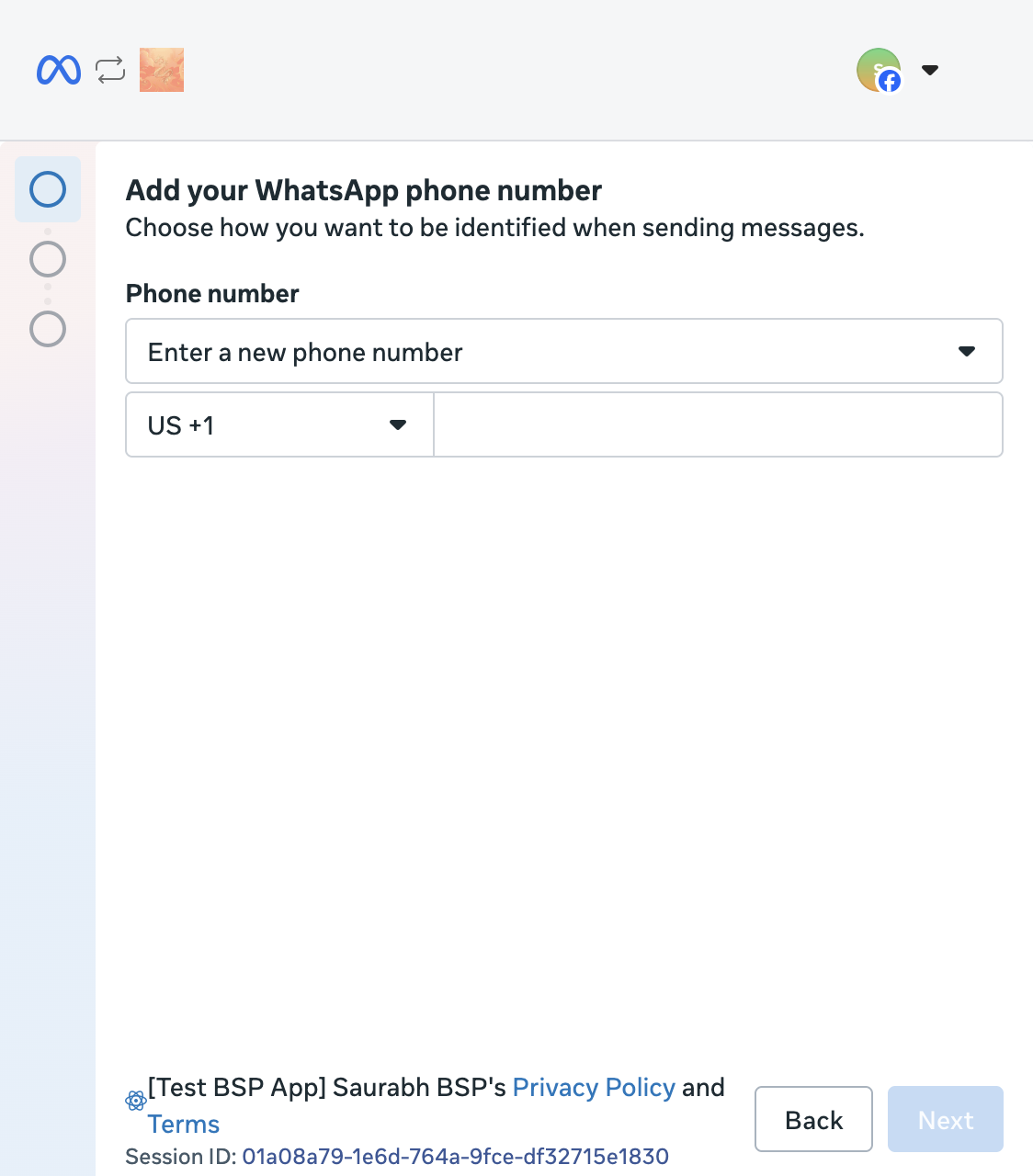
If the new provider does standard onboarding
- Choose your existing business portfolio and your existing phone number.
- Finish the signup. On the new account model, Meta automatically creates a separate Messaging account for the new provider and gives it access to the number. Your existing conversations aren't interrupted. On the old account model, the new provider then registers the number, which re-associates it with the new account instantly.
- Add your payment method for the new provider's Messaging account.
- Switch your app to the new provider's credentials and webhook.
- Once you're satisfied, remove the old provider from the account in Business Settings. It receives an
account_updatenotice when you do.
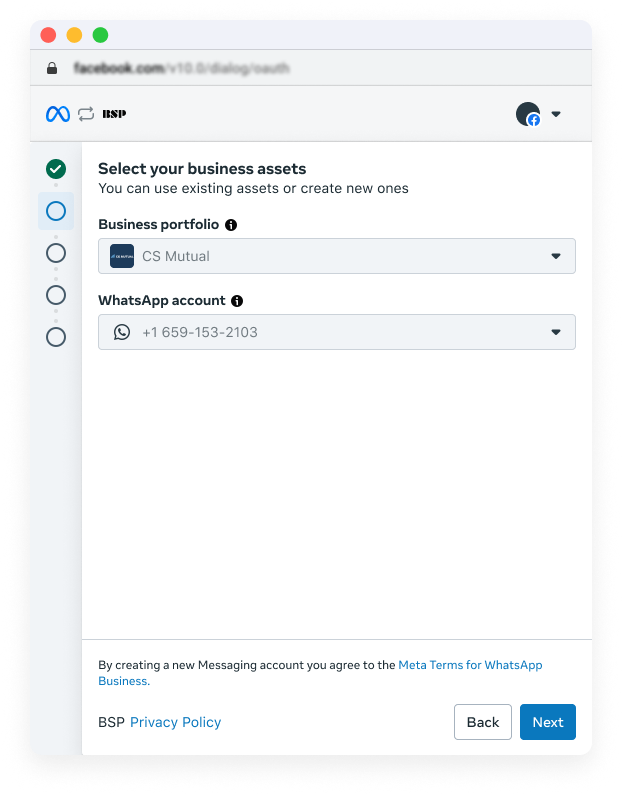
Prefer to share the accounts by hand instead of using the signup?
A provider can also be added directly in Business Settings, without using its signup page.
SHARE BOTH ACCOUNT TYPES
- The WhatsApp account gives the provider the phone number.
- The Messaging account gives it the templates and billing.
- Messaging doesn't work unless the provider has access to both.
STEPS, FOR EACH ACCOUNT TYPE
- Ask the provider for its business portfolio ID.
- Open Business Settings → Accounts → WhatsApp accounts.
- Select the account and click Assign partner.
- Enter the provider's business portfolio ID and set the permissions.
- Press Assign, and check the provider appears on the account's Partners tab.
- Repeat steps 2 to 5 under Messaging accounts.
LIMITS AND REQUIREMENTS
- A WhatsApp account can be shared with up to five Solution Partners.
- A Messaging account can be shared with up to two partners.
- The provider's app needs Advanced access for
whatsapp_business_managementandwhatsapp_business_messaging. Without it, its API calls fail with error 200. - If the provider is a Solution Partner, it also has to share its credit line with you before you can send through its app.
Onboarding to Coexistence Provider
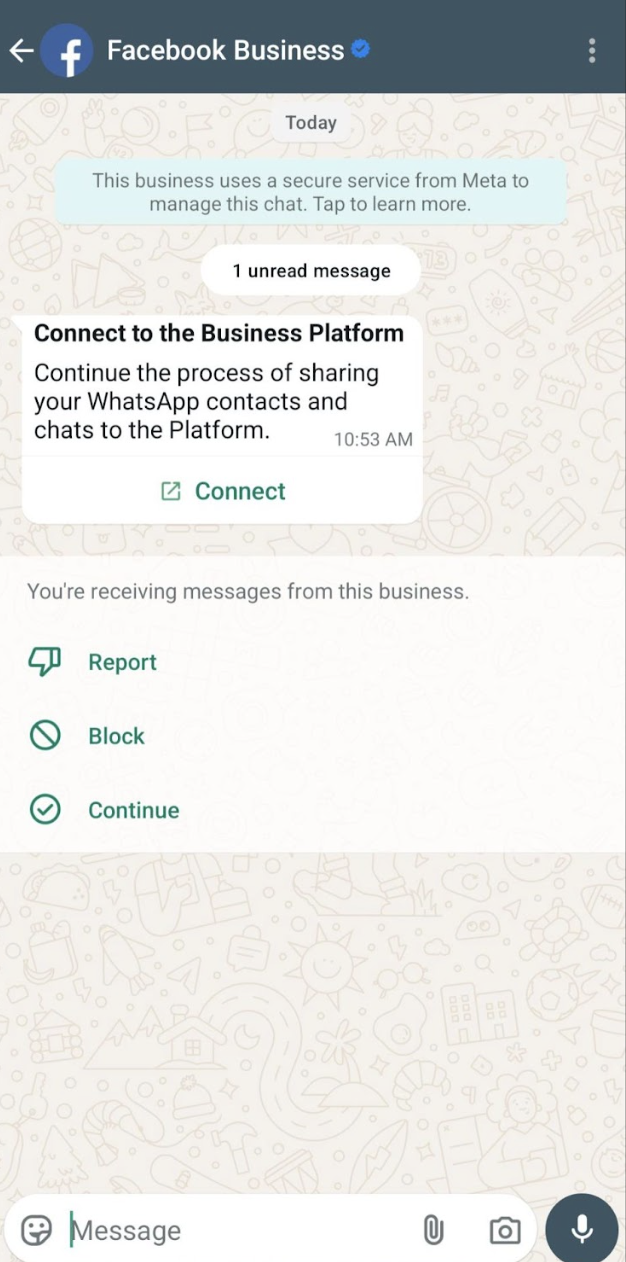
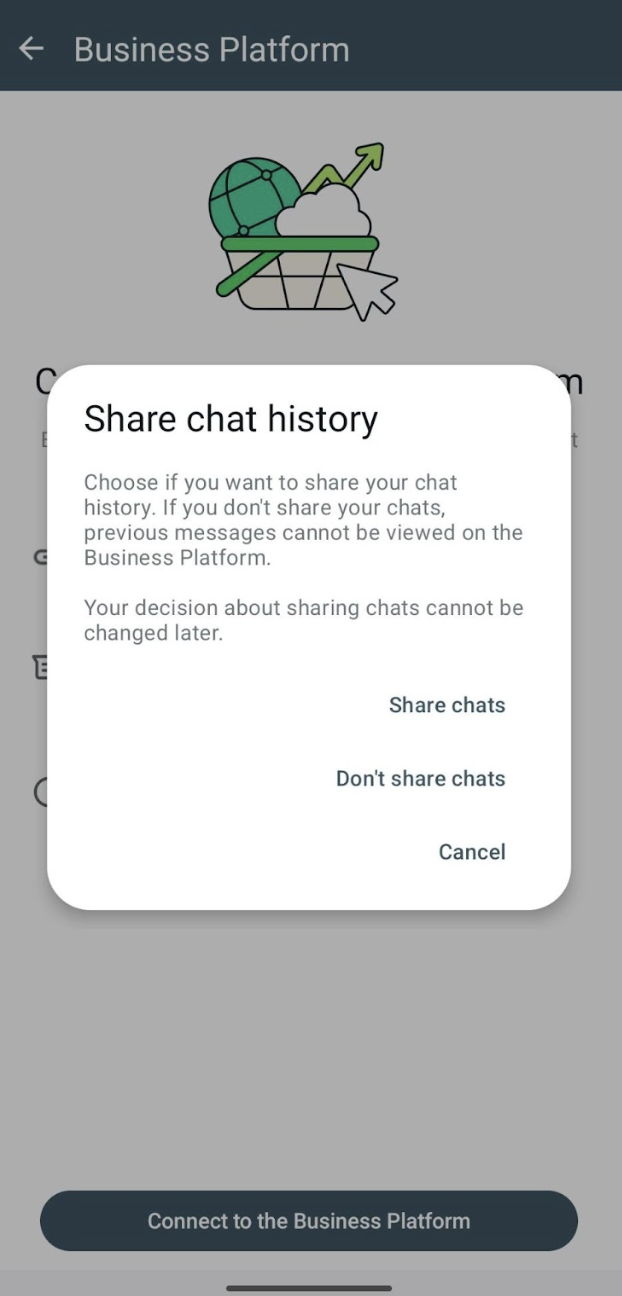
- Choose the option for an existing WhatsApp Business app number. You'll get a code in the app: tap the message from the Business Platform, choose Connect, confirm whether to share your chat history (Meta says you can’t change that choice later), and paste the code.
- The new provider has 24 hours to start syncing your contacts and chat history, counted from when you finish the steps above. If it doesn't, Meta requires the number to be offboarded and the signup repeated. Ask the new provider that they do this.
- Update your app to the new provider's credentials and webhook.
Step 3. Test
- Send yourself a template message, and message the number from your phone to check it arrives at the new webhook.
- Compare your list of approved templates with the new Messaging account.
- Read what does and doesn't change below, so nothing about limits, reputation or billing surprises you.
What does NOT change
These belong to the phone number and to your business portfolio, not to the provider, so they stay with you:
- Display name (number).
- Business verification (business portfolio).
- Messaging limit (unique users per 24 hours, set at the portfolio level).
- Number reputation (the quality rating of the number).
Not documented by Meta: Meta lists these as unchanged when a provider is added on the new model, and the old migration keeps them. For the moves between standard onboarding and coexistence it doesn't say either way. They are tied to the number and the portfolio, so we expect them not to change, but it isn't confirmed.
What changes
- Throughput: a standard-onboarding number isn't held to the coexistence figure. While a number is on both the Business app and the API, Meta fixes it at 20 messages per second.
- Templates: you need to copy them to the new Messaging account yourself, either by re-creating them or with Meta's template migration API. The one exception is Standard → Standard on the old model, where approved templates are copied for you. For coexistence → coexistence they should stay, but Meta doesn't spell it out, so check them.
- Template reputation: copied templates start from a reset quality rating and tier, and take roughly 2 to 4 weeks to ramp back up. Re-created templates are new and go through review again.
- Billing: if the new provider is a Solution Partner, it can extend its own credit line. Otherwise you add your own payment method to the new Messaging account (on the old model, to the WhatsApp Business account), in WhatsApp Manager or Meta Business Suite. Until you do, template messages won't go.
- Registration: a standard-onboarding provider will probably register the number itself and may need the PIN. Coexistence numbers are already registered. When a number gets registered, and how the PIN works.
Downtime
- Standard → Standard: none. On the new model both providers are attached at once, and on the old model Meta describes the move as instant.
- Coexistence → coexistence: 15 minutes. Meta asks you to wait that long between disconnecting and connecting the new provider. The Business app keeps working meanwhile.
- Standard → coexistence: up to 3 minutes. Meta's signup error says it can take that long for the number to become available after it's deregistered.
- Coexistence → standard: a few minutes. Not documented by Meta. The Business app is also gone from the number.
Also worth asking your new Service Provider
- Incoming messages while two providers share a number: Not documented by Meta: how they're split. One description says every provider receives them. Ask both how they handle the overlap, so two bots don't answer the same customer.
- The WhatsApp Business app, contacts and chat history (coexistence): see What to ask a Tech Provider or BSP before you onboard via them.
Where each step happens
You never need developers.facebook.com for any of this. That site
is for the providers' own developers.
- The WhatsApp Business app on your phone: disconnecting a coexistence number.
- WhatsApp Manager: two-step verification, templates, phone number settings, your payment method.
- Business Settings → Accounts: who owns the account, and which partners can access it.
- The new provider's signup page: adding the new provider.
If something goes wrong
- "Switching partners is not supported in this flow" (code 2655093): the number is connected through the Business app. Disconnect it there (see Step 1), then try again.
- "This phone number is already registered with the product" (3441049) or "Please disconnect your business platform to continue" (2655094): disconnect in the app as above and wait 15 minutes.
- "This number is registered to an existing WhatsApp account": your provider is probably calling the register API on the number. That is usually done on a brand-new phone number that is not on WhatsApp, like a number you just got. Maybe the provider is doing a standard (Cloud API only) onboarding and calls register at the end. The error is thrown if the number is already on WhatsApp, either registered on regular WhatsApp or on the WhatsApp Business app. Step-by-step: how to de-register your number.
- "The phone number you entered is already registered" (3441030): this is most likely a number onboarded the standard way (API only) with another provider, and you're now connecting it as a coexistence number through a different one. Deregister it first: ask the old provider, or delete it yourself in WhatsApp Manager (not possible if it sent paid messages in the last 30 days). Step-by-step: how to de-register your number.
- "Your phone number isn't eligible to connect to the WhatsApp Business Platform" (3441045): Meta wants to see more activity on the WhatsApp Business app first. It doesn't say how much, so use the app normally for a while and try again.
- "The phone number is not associated with the business you selected" (3441041): the number sits under another portfolio. Remove it from there first (Business Settings → Accounts → WhatsApp accounts → Remove, or delete the number in WhatsApp Manager).
- "This account is already shared with another partner" (2655049, 2494028):
- Old model: the account you picked is already shared with a different provider, and in this model it can only be shared with one. Unshare it from the old provider in Business Settings → WhatsApp accounts → the account → Partners, or create a new account.
- New model: this shouldn't normally happen, because each provider gets its own Messaging account. If you see it, check you haven't reached the limits (five partners on a WhatsApp account, two on a Messaging account), and that the Messaging account doesn't have another provider's credit line attached.
- Error 133016, too many attempts: Meta allows 10 registration requests per number in 72 hours. Stop, wait, then retry once with the right PIN. When a number gets registered, and how the PIN works.
- Error 133010, "Account not registered": registration didn't finish. The provider still has to register the number. When a number gets registered, and how the PIN works.
- Template messages don't go: check you added a payment method, and that the template exists and is approved in the new provider's Messaging account.
Meta's own docs
- Updates to WhatsApp Business accounts (the new account model)
- Onboarding changes under the new account model
- Migrating a number between providers via Embedded Signup (previous model)
- Onboard WhatsApp Business app users (coexistence)
- Embedded Signup flow errors
- Two-step verification
- On-Behalf-Of ownership model deprecation
Planning to move to a new Tech Provider / BSP ?
What to ask a Tech Provider or BSP before you onboard via them →