How to Create Meta Business Portfolio & Add Your WhatsApp Number to It
IS THIS MANDATORY?
Yes, you need one. But you do not need a verified business: create the portfolio with the name of your app or website, and it can stay unverified. Meta's own docs are explicit: "You must have a business portfolio to use the [WhatsApp Business] platform." There's no way to create a WhatsApp-enabled Meta App without connecting it to one. (Source: About the WhatsApp Business Platform.)
1. Create a business portfolio
Go to business.facebook.com and create a new business portfolio. You do not need a different Facebook account. One Facebook account can own several portfolios, so if you land in an existing one (for example, one made for another project), stay logged in and add a new portfolio using the switcher at the top left.
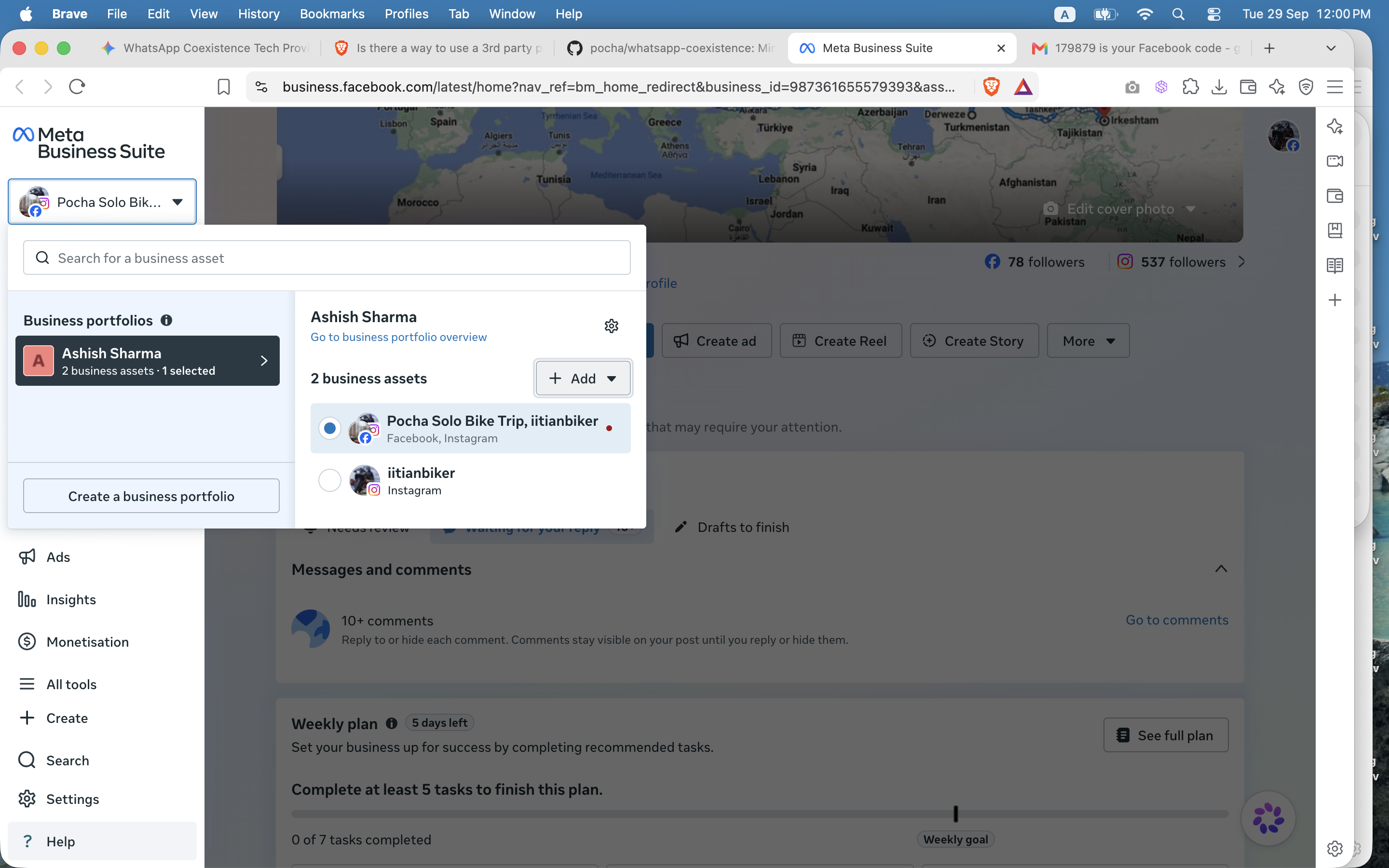
The portfolio switcher (top left) has a "Create a business portfolio" button.
2. Fill in the details
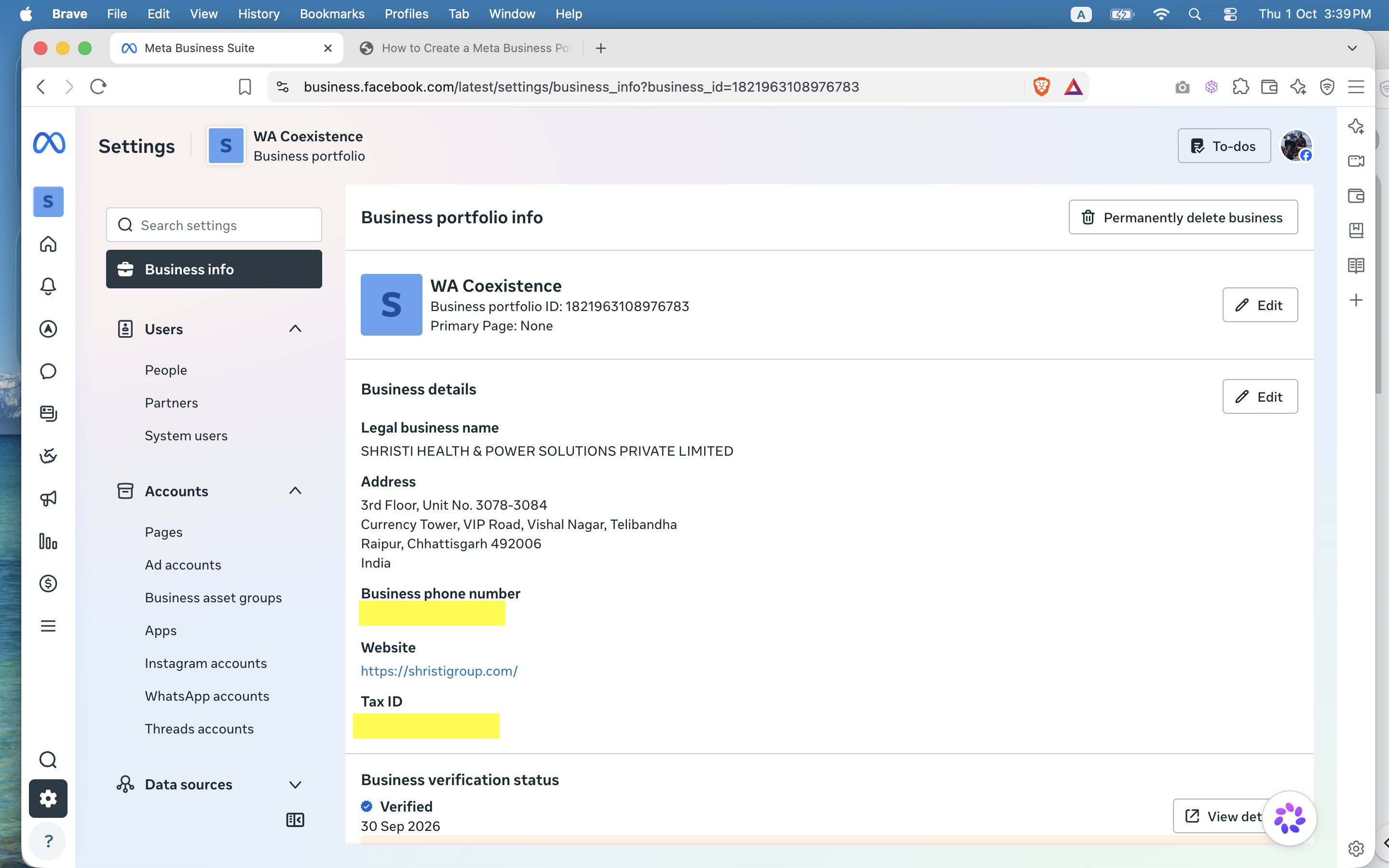
Enter the business details Meta asks for, such as the business name, your name and a business email. If you have a registered business, provide the exact details (name, address and phone number) as on the document you plan to submit for business verification. Later you can edit the display name from Business Settings → Business Info.
3. Open Business Settings
Once the portfolio is created, click the Business Settings button, or go straight to business.facebook.com/latest/settings. If you land on a different account, switch to the new portfolio using the portfolio switcher at the top left.
4. Add your WhatsApp account
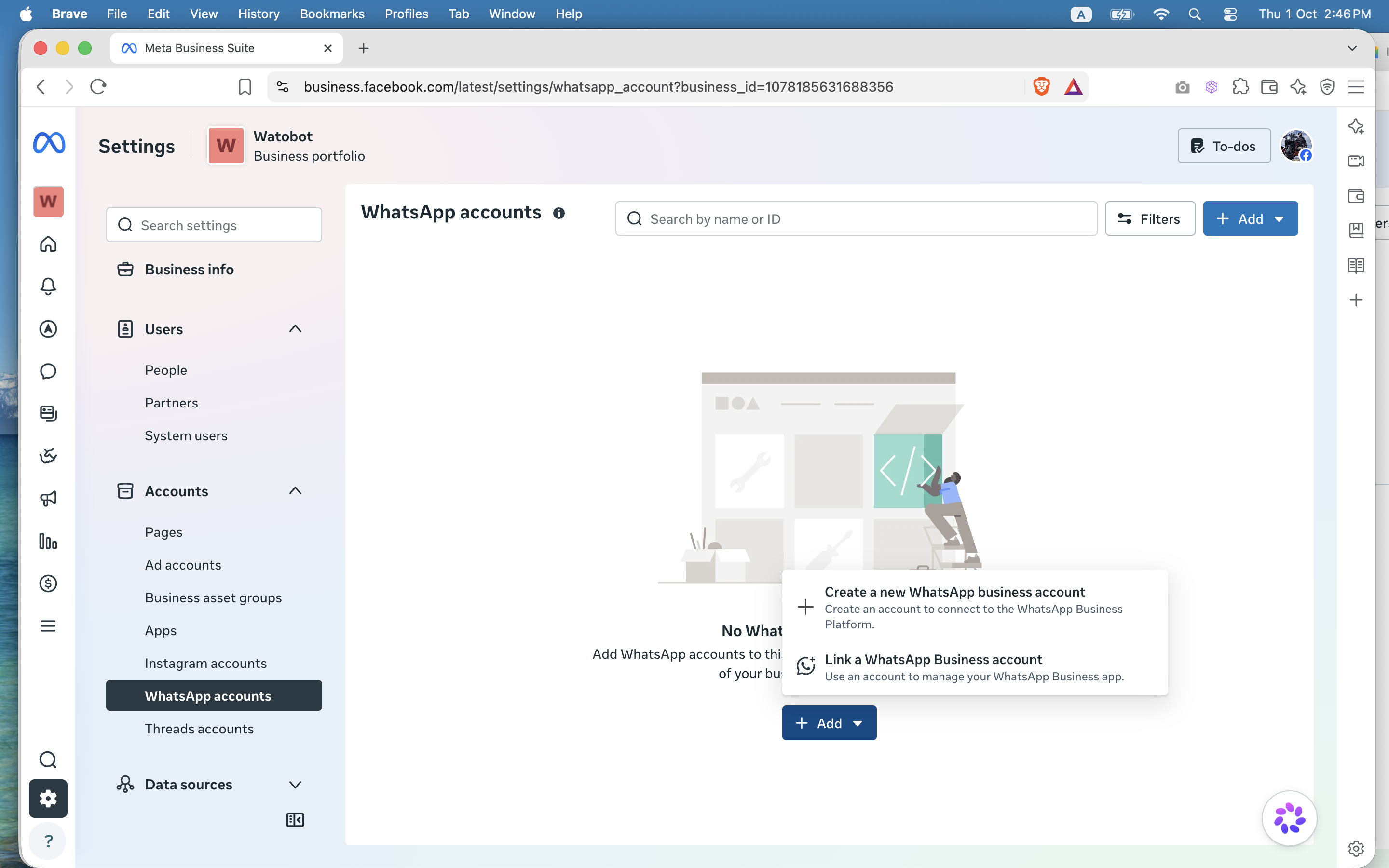
First, install the WhatsApp Business app (free on the app store) and log in with the phone number you want the API activated on. Then come back here. In Business Settings, go to Accounts → WhatsApp accounts, click Add and choose Link a WhatsApp Business account.
5. Add an app
Your portfolio needs a Meta app before you can get an access token. See How to Get WhatsApp API for Free.
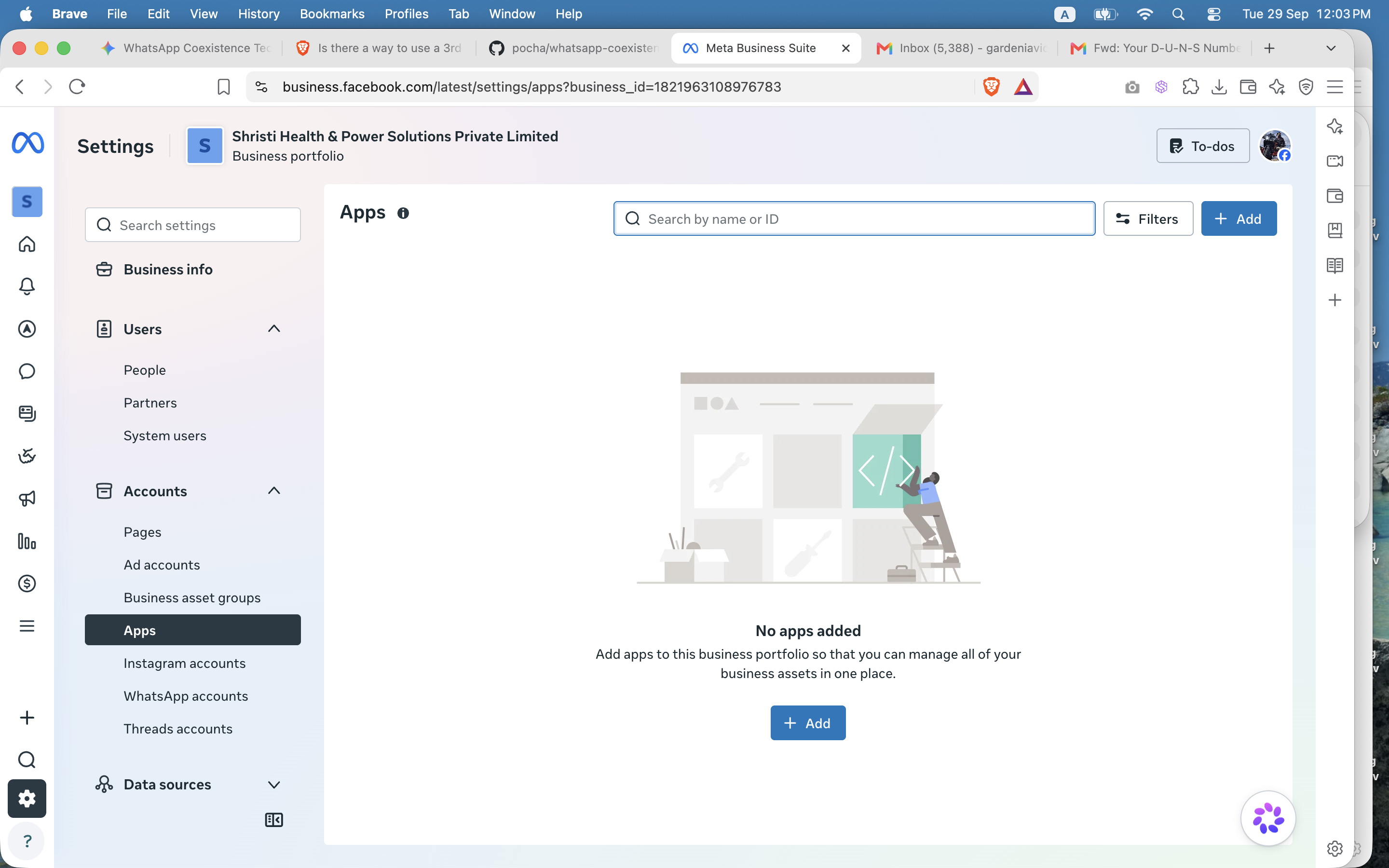
Your new portfolio, ready to have an app connected to it.
See also
How to Get WhatsApp API for Free →What you can do for free, and the limits
Know your limits
- Conversations you start: up to 250 unique customers per 24 hours (rolling window), rising to 2,000 once your business is verified. You can only send messages with an approved template, and you pay a per-message cost based on the customer's country. There is no free monthly quota for these messages.
- Conversation started by your customer: you can send free form messages for 24 hours after a customer messages you. You get 1000 free responses per month. After the limit, you are charged at 'service' template rate, which is same as utility message.
Exception: Any customer starting conversation via 'Click to Whatsapp' ad on Instagram/Facebook or by clicking 'chat on whatsapp' CTA on your facebook page, you can respond to them for free for upto 7 days, provided your first response to them was within 24 hour window of they messaging you.
Full details on WhatsApp's pricing page. These are Meta's rules, and they can change.